

Instruction Manual


Download "ControlApp" by accessing the App Store from your iPhone or iPod touch and search "ControlApp".

Connect your compatible Pioneer product to your network (for a list of compatible products, click here).

Confirm your iPhone or iPod touch is connected to your Wi-Fi network.

Turn ON power to the compatible Pioneer product.

Open ControlApp on your iOS device.
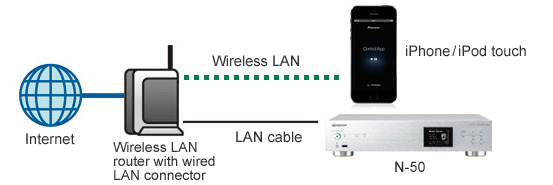
* Example above shows N-50. The same connection principles apply to other products.

Once the compatible Pioneer product connected to your network is discovered, the following notification will appear:
< Normal >
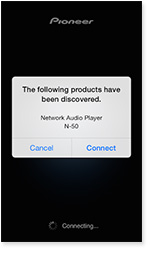 Tap the "CONNECT" button.
When the connection is established the "CONTROL" screen will appear.
Proceed to "Usage" section.
< When new data is found for the device controlled by the ControlApp >
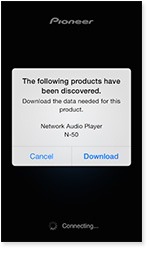 Tap the "Download" button.
Download will start.
When download is completed, the "CONTROL" screen will appear.
Proceed to "Usage" section.
<When 2 or more compatible products are connected to the network>
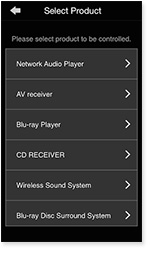 "Select Product" page displays discovered model names. Tap the model name to connect to it.
(To see explanation of the "Select Product" page , click here)
To complete the connection to your product, tap the  key on the top left.
The "CONTROL" page appears.
Proceed to "Usage" section.
Please select the product you would like to control.
・Network Audio Player(N-30, N-50)
・Network Audio Player(N-50A, N-70A, N-P01, XN-P02, XN-P02DAB)
・AV Receiver (VSX-42, VSX-1022, VSX-827, VSX-822, VSX-527)
・AV Receiver (VSX-S510, VSX-43, VSX-1023, VSX-823, VSX-828, VSX-528)
・Blu-ray Disc Player
・CD Receiver (X-HM71, X-HM81, XC-HM81)
・CD Receiver (X-HM72, X-HM72D, X-HM82, X-HM82D, XC-HM82, XC-HM82D)
・Wireless Speaker
・Blu-ray Disc Surround System
・Slim Micro System
・Network AV Speaker Bar System
・Network Speaker Base
・INTERNET RADIO
・Playing music directly from your iPhone/iPod touch, wirelessly
・Common setting page
[ Network Audio Player(N-30, N-50) ]
"CONTROL"
1. "POWER"
When the button is tapped, Power alternates ON/OFF. *1
2. "Current input"
Displays the unit's currently selected function.
3. "Input function select"
When the various input function icons are tapped, the input function changes.
* The number of input functions differs depending on the model.
4. "Input operations"
When the input function is Internet Radio, Music Server or USB, tapping these buttons displays the input operation screens.
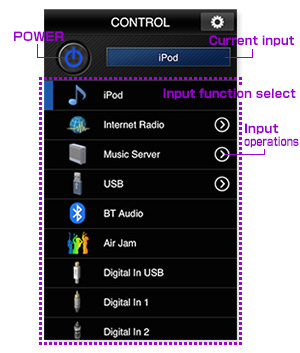
Control screen
"INPUT OPERATION"
On this screen you have access to additional control of the selected input function.
* Depending on the system software version of the connected Network Audio Player, some functions may not work. Please visit the Pioneer website for information on how to update your player.
1. "List"
Within a list of music files, tapping the button will start playback;
when folders are listed, you will access items in that particular folder.
When the full name can not be shown ("..." will appear at the end), tapping and holding the cell for a few seconds reveals a pop-up with the full name, as illustrated on the right.
2. "UPDATE"
Tapping the button will update the list.
3. "Playback operations panel"
Allows basic playback control.
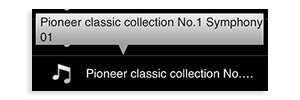
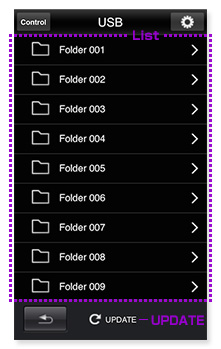
List screen
*Example when USB is selected
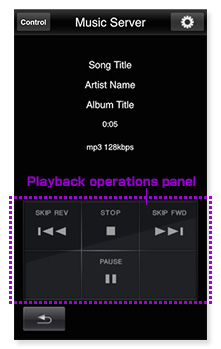
Playback operation screen
*Example when USB is selected
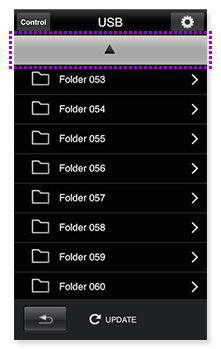
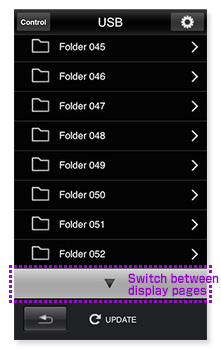
Tap the Δ / ∇ buttons to move between pages.
[ Network Audio Player(N-50A, N-70A, N-P01, XN-P02, XN-P02DAB) ]
"CONTROL"
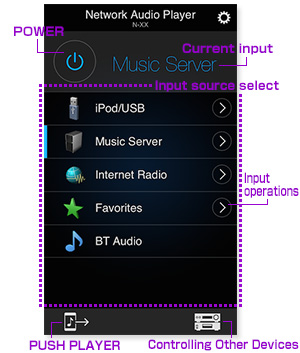
1. "POWER"
When the button is tapped, Power alternates ON/OFF. *1
2. "Current input"
Displays the unit's currently selected source.
3. "Input Source select"
When the various input source icons are tapped, the input source changes
* The number of input sources differs depending on the model.
4. "Input operations"
When the input source is Internet Radio, Music Server or iPod/USB, tapping these buttons displays the input operation screens.
5. "PUSH PLAYER"
Tapping the mark  accesses the PUSH PLAYER screen for playing music directly from your iPhone/iPod touch.
See explanation of the "PUSH PLAYER" page , click here
6. "Controlling Other Devices"
Tap this button to switch to the screen for controlling other devices.
"INPUT OPERATION"
You can select a list of radio stations and contents, to play from the following Input sources: "Internet Radio", "Music Server", "Favorites", "iPod/USB".
* To see explanation of the "Internet Radio" page , click here
1. "List"
You can play songs or move the layer by tapping.
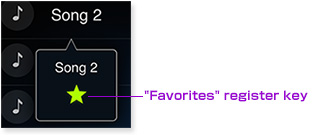
You can add a song or station to "Favorites" by pressing and holding a song or station from the "Internet Radio" and "Music Server" functions.
You can remove a song or station from "Favorites" by pressing and holding the song or station from within the "Favorites" function.
In addition you can add a song or station to "Favorites" from "Playback operation panel".
When in the list screen, attempting to scroll past the available items will cause the Δ / ∇ keys to appear, allowing you to alternate between multiple pages.
Tap the Δ / ∇ buttons to move between pages.
2. "RETURN"
Tap this button while on the list screen to go back up one layer in the list.
On the playback screen you will be returned to the list screen.
3. "TOP MENU"
Tapping the button causes switching to the playback screen.
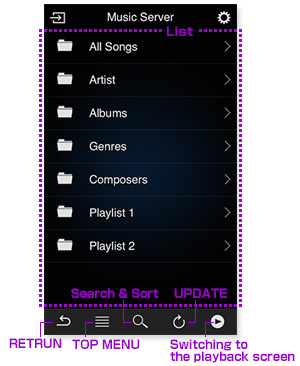
List screen
* Example when Music Server is selected
4. "Search & Sort"
Displayed when operating the server handling search or sort when the input source is "Music Server" and by tapping, the menu on the right appears.
4-1. "Searching the entire server"
After selecting the sever, performs searching the entire server.
4-2. "Searching the current folder and below"
Search is performed on the current folder and below.
4-3. "Sort"
Switches between the track order and alphabetical order.
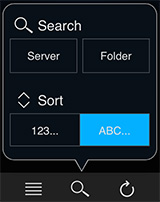
About the search function
The entered search keyword is requested to the server supporting the search function and the search result notified by the server is displayed in the ControlApp list.
Even though the music is the same, if the same music is registered in each folder configured in the server, the search result may be displayed in duplicate.
If you wish to reduce the duplicated display of the search result, use the Folder search to narrow down the target range of search.
Also, the search function depends on the specifications of each server, it does not mean that same search result can be obtained from all servers.
5. "UPDATE"
Tapping this button will update the list that is displayed.
6. "Switching to the playback screen"
Tapping the button causes switching to the playback screen.
7. "Playback operations panel"
Allows basic playback control.
* The available buttons differ depending on the input selected and the content being played back.
8. "Switch to the Spotify App"
Tapping the button will launch/switch to the Spotify App.
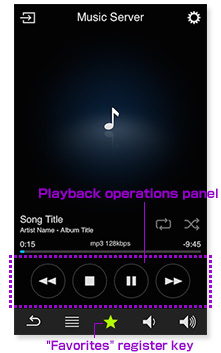
playback screen
* Example when Music Server is selected
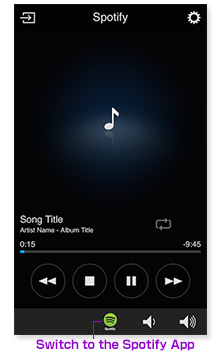
playback screen
* Example when Spotify is selected
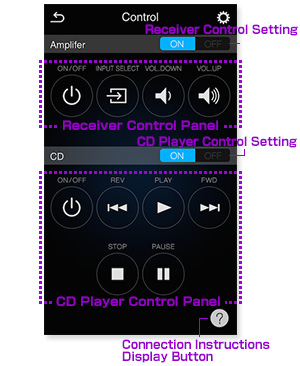
"Controlling Other Devices"
This screen allows you to control a Pioneer receiver / CD player connected to the Network Audio Player's CONTROL connector.
* In order to control a receiver / CD player you first need to connect it to the Network Audio Player.
Perform the connection following the connection instructions.
* The following devices can be connected.
[Devices to which the N-50A, N-70A can be connected]
Receiver : A-70, A-50, A-30, A-20
CD player : PD-50, PD-30, PD-D9MK2, PD-D6MK2, PD-D9, PD-D6
[Devices to which the N-P01, XN-P02, XN-P02DAB can be connected]
Receiver :SX-P01, SX-P01DAB
CD player : PD-P01
When connected, the remote control signal receiver on the receiver or CD player will cease to function, and the remote control signal receiver on the Network Audio Player will accept the remote control signal from the receiver / CD player's remote control.
Point the remote control at the Network Audio Player.
In order to control the receiver or CD player even while the Network Audio Player is in standby mode, the Network Audio Player's Quick Start setting or Network Standby setting must be turned On.
1. "Receiver Control Setting"
In order to control the receiver, perform the connection and turn this setting On.
2. "Receiver Control Panel"
Perform all control functions for the receiver.
3. "CD Player Control Setting"
In order to control the CD player, perform the connection and turn this setting On.
4. "CD Player Control Panel"
Perform all control functions for the CD player.
5. "Connection Instructions Display Button"
Tap this button to display instructions for connection to a Pioneer receiver / CD player.
[ AV Receiver (VSX-42, VSX-1022, VSX-827, VSX-822, VSX-527) ]
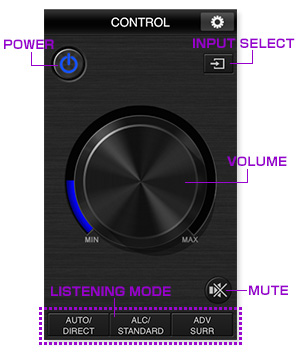
"CONTROL"
1. "POWER"
You can switch on/off power of the AV receiver by tapping the button. *2
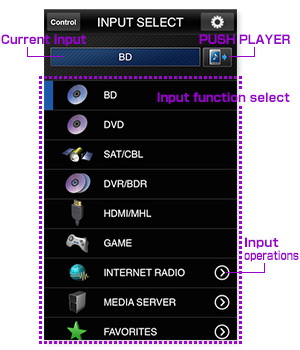
2. "INPUT SELECT"
"INPUT SELECT" page appears by tapping button. In this page, you can select one of the input functions.
3. "LISTENING MODE"
Change LISTENING MODE by tapping each button.
*Some Listening Modes are not available, depending on the Input selected.
4. "VOLUME"
You can adjust the AV receiver volume by dragging the "VOLUME" dial.
5. "MUTE"
You can mute the sound by tapping the button.
Control screen
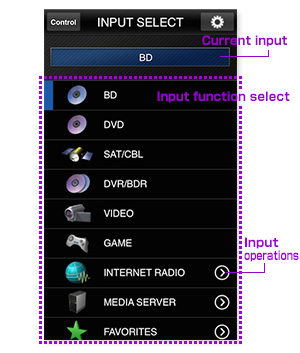
"INPUT SELECT"
1. Current input
Displays the unit's currently selected function.
2. Input function select
When the various input function icons are tapped, the input function changes.
The number of input functions differs depending on the model.
3. Input operations
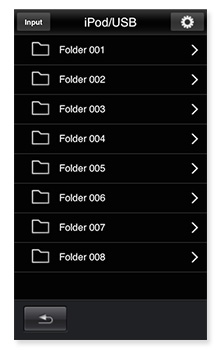
When there is a mark  next to the name of the input function, tapping the mark , gives access to the List screen, and Input operation screen.
Input select screen
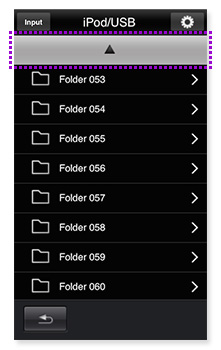
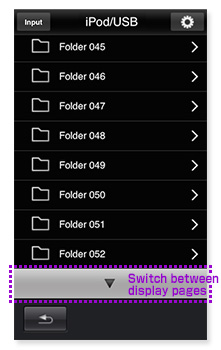
List screen
* Example when iPod/USB is selected
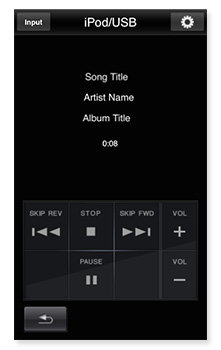
Input operation screen
* Example when iPod/USB is selected
Tap the Δ / ∇ buttons to move between pages.
[ AV Receiver (VSX-S510, VSX-43, VSX-1023, VSX-823, VSX-828, VSX-528) ]
"CONTROL"
1. "POWER"
You can switch on/off power of the AV receiver by tapping the button. *2
2. "INPUT SELECT"
"INPUT SELECT" page appears by tapping button. On this page, you can select one of the input functions.
3. "LISTENING MODE"
Change LISTENING MODE by tapping each button.
*Some Listening Modes are not available, depending on the Input selected.
4. "VOLUME"
You can adjust the AV receiver volume by dragging the "VOLUME" dial.
5. "MUTE"
You can mute the sound by tapping the button.
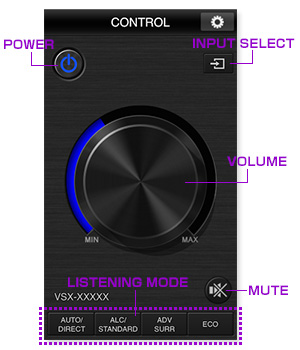
Control screen
"INPUT SELECT"
1. Current input
Displays the unit's currently selected function.
2. Input function select
When the various input function icons are tapped, the input function changes.
The number of input functions differs depending on the model.
3. Input operations
When there is a mark next to the name of the input function, tapping the mark gives access to the List screen, and Input operation screen.
* If you want to listen to Spotify on your Pioneer AV Receiver, you have to open the "Spotify App".
* Spotify function does not work in areas where the Spotify service is not available.
4. "PUSH PLAYER"
Tapping the mark  accesses the PUSH PLAYER screen for playing music directly from your iPhone/iPod touch.
See explanation of the "PUSH PLAYER" page , click here)
Input select screen
INPUT OPERATIONS
You can select a list of radio stations and contents, to play from the following Input functions: "INTERNET RADIO", "MEDIA SERVER", "FAVORITES", "iPod/USB", "PANDORA".
You can select the preset station that you have pre-registered in the "TUNER" function.
* The type and number of the function depends on the model.
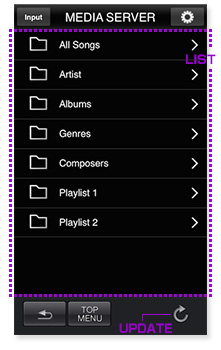
1. "LIST"
You can play songs or move the layer by tapping.
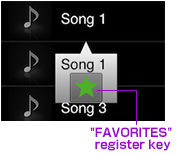
You can add a song or station to "FAVORITES" by pressing and holding a song or station from the "INTERNET RADIO" and "MEDIA SERVER" functions.
You can remove a song or station from "FAVORITES" by pressing and holding the song or station from within the "FAVORITES" function.
2. "UPDATE"
Tapping the button will update the display list.
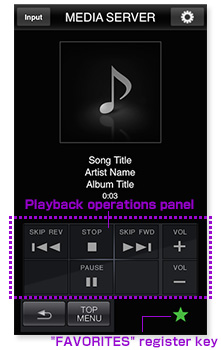
3. "Playback operations panel"
Allows basic playback control.
Available playback options depend on the Input function selected.
4. "Switch to the Spotify App"
Tapping the button will launch/switch to the Spotify App.
List screen
* Example when MEDIA SERVER is selected
Input operation screen
* Example when MEDIA SERVER is selected
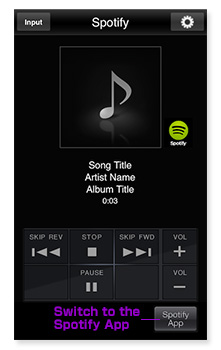
Input operation screen
* Example when Spotify is selected
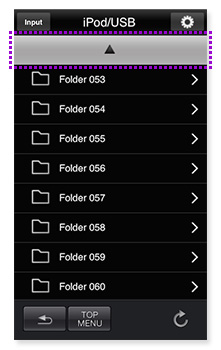
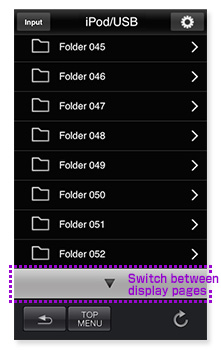
Tap the Δ / ∇ buttons to move between pages.
[ Blu-ray Disc Player ]
1. "POWER"
You can switch the power of the Blu-ray Disc player on/off by tapping the button. *3
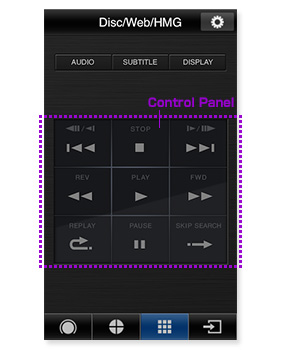
2. "Control Panel"
You can control the basic operation of the Blu-ray Disc player, such as "play", "pause", "stop", "forward", etc. *4
3. "OPERATION MODE"
You can select the operation mode.
* You can select the "basic operation mode" by tapping
 button.
* You can select the"Cross" interface by tapping  button.
4. "Cross"
You can move cursor by flicking up/down/left/right.
Tap action means "ENTER".
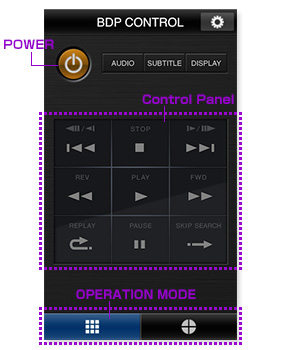
Basic opration mode
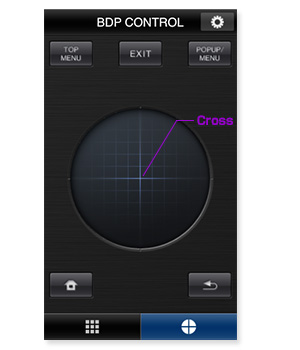
Cross
[ CD Receiver (X-HM71, X-HM81, XC-HM81) ]
"CONTROL"
1. "POWER"
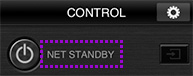
You can switch on/off("NET STANDBY") power of the CD receiver by tapping the button. *5
When Network standby is turned on, "NET STANDBY" will appear beside the power button.
2. "INPUT SELECT"
"INPUT SELECT"page appears by tapping button. In this page, you can select the input function by tapping input function table.
3. "VOLUME"
You can adjust the CD receiver volume by dragging the "VOLUME" dial.
4. "MUTE"
You can mute the sound by tapping the button.
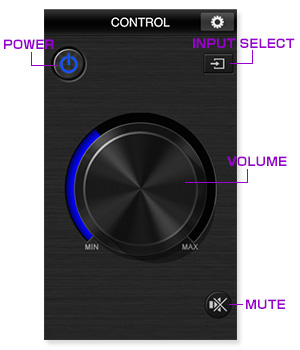
Control screen
"INPUT SELECT"
1. Input function labels
Displays the unit's currently selected function.
2. Input function select
When the various input function icons are tapped, the input function changes.
The number of input functions differs depending on the model.
3. Input operations
When there is a mark next to the name of the input function, tapping the mark , gives access to the List screen, and Input operation screen.
4. UPDATE
Tapping the button will update the display list.
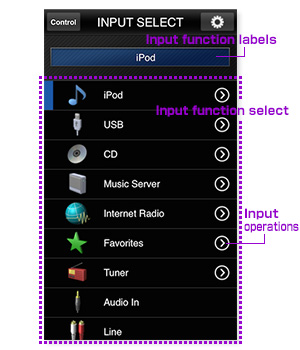
Input select screen
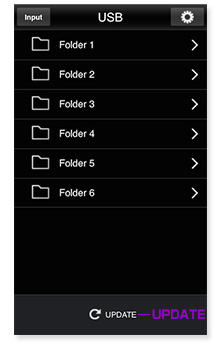
List screen
*Example when USB is selected
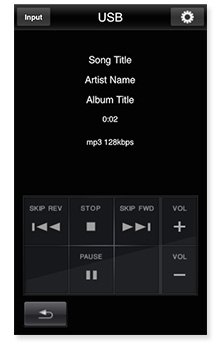
Input operation screen
*Example when USB is selected
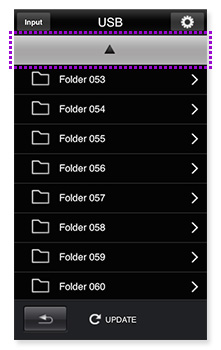
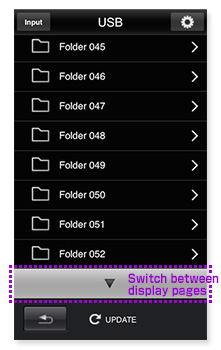
Tap the Δ / ∇ buttons to move between pages.
【CD Receiver (X-HM72, X-HM72D, X-HM82, X-HM82D, XC-HM82, XC-HM82D) 】
"CONTROL"
1. "POWER"
You can switch on/off power of the CD receiver by tapping the button. *6
2. "INPUT SELECT"
"INPUT SELECT" page appears by tapping button. In this page, you can select the input source by tapping input source table.
3. "VOLUME"
You can adjust the CD receiver volume by dragging the "VOLUME" dial.
4. "MUTE"
You can mute the sound by tapping the button.
5. "P.BASS"
When the button is tapped, "P.BASS" switches ON/OFF.
6. "SOUND"
When the button is tapped, "EQUALIZER mode" change to a different mode.
7. "SLEEP"
The sleep timer switches the CD receiver into standby after a specified amount of time so you can fall asleep without worrying about the CD receiver being left on all night.
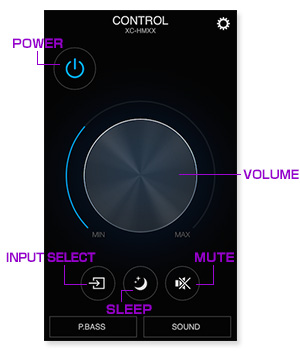
"INPUT SELECT"
1. "Current input"
Displays the unit's currently selected source.
2. "Input source select"
When the various input source icons are tapped, the input source changes.
3. "Input operations"
When there is a mark next to the name of the input source, tapping the mark , gives access to the List screen, and Input operation screen.
4. "PUSH PLAYER"
Tapping the mark accesses the PUSH PLAYER screen for playing music directly from your iPhone/iPod touch.
See explanation of the "PUSH PLAYER" page , click here
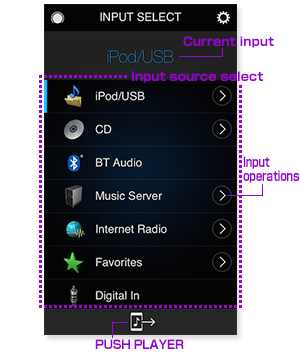
INPUT OPERATIONS("iPod/USB", "CD", "Music Server", "Internet Radio", "Favorites")
You can select a list of radio stations and contents to play from the following Input sources : "iPod/USB", "Music Server", "Internet Radio", "Favorites"
* To see explanation of the "Internet Radio" page , click here
1. "List"
You can play songs or move the layer by tapping.
You can add a song or station to "Favorites" by pressing and holding a song or station from the "Internet Radio" and "Media Server" functions.
You can remove a song or station from "Favorites" by pressing and holding the song or station from within the "Favorites" function.
In addition you can add a song or station to "Favorites" from "Playback operation panel".
When in the list screen, attempting to scroll past the available items will cause the Δ / ∇ keys to appear, allowing you to alternate between multiple pages.
Tap the Δ / ∇ buttons to move between pages.
2. "RETURN"
Tap this button while on the list screen to go back up one layer in the list.
On the playback screen you will be returned to the list screen.
3. "TOP MENU"
Tapping the button causes switching to the playback screen.
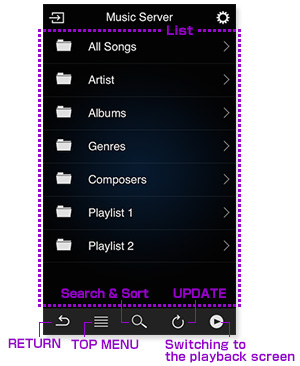
List screen
* Example when Music Server is selected
4. "Search & Sort"
Displayed when operating the server handling search or sort when the input source is "Music Server" and by tapping, the menu on the right appears.
4-1. "Searching the entire server"
After selecting the sever, performs searching the entire server.
4-2. "Searching the current folder and below"
Search is performed on the current folder and below.
4-3. "Sort"
Switches between the track order and alphabetical order.
About the search function
The entered search keyword is requested to the server supporting the search function and the search result notified by the server is displayed in the ControlApp list.
Even though the music is the same, if the same music is registered in each folder configured in the server, the search result may be displayed in duplicate.
If you wish to reduce the duplicated display of the search result, use the Folder search to narrow down the target range of search.
Also, the search function depends on the specifications of each server, it does not mean that same search result can be obtained from all servers.
5. "UPDATE"
Tapping the button will update the display list.
6. "Switching to the playback screen"
Tapping the button causes switching to the playback screen.
7. "Playback operations panel"
Allows basic playback control.
* The available buttons differ depending on the input selected and the content being played back.
8. "Switch to the Spotify App"
Tapping the button will launch/switch to the Spotify App.
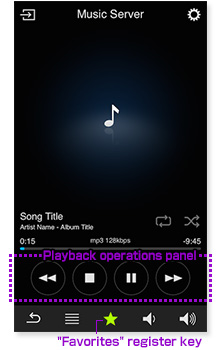
playback screen
* Example when Music Server is selected
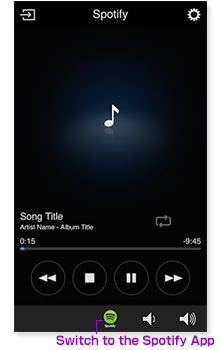
playback screen
* Example when Spotify is selected
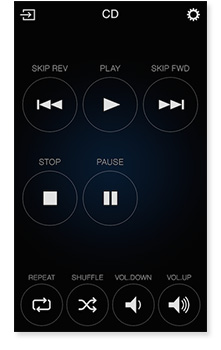
playback screen
* Example when Spotify is selected
INPUT OPERATIONS("Tuner")
1. "Preset station list"
You can select the preset station that you have pre-registered

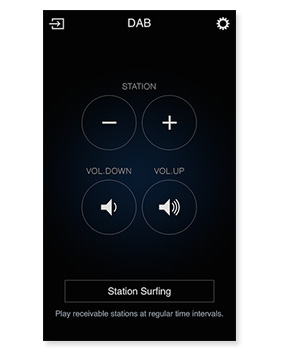
INPUT OPERATIONS("DAB")
1. "Station"
You can select the station for DAB.
2. "Station Surfing"
Receivable broadcasting station is played for a short time , and changed to the next broadcasting station automatically.
* Play time is changed depending on environment.
[ Wireless Speaker ]
"CONTROL"
Click here for the Wireless Speaker operating.
1. "Internet Radio"
Tapping this button switches to Internet Radio.
* Tapping "Internet Radio" while on standby when Wireless Speaker is in "Quick Start Mode" turns on the Wireless Speaker, and function changes to "Internet Radio"
2. "Pandora"
Tapping this button switches to Pandora.
* Pandora is only available in the US.
* Tapping "Pandora" while on standby when Wireless Speaker is in "Quick Start Mode" turns on the Wireless Speaker, and function changes to "Pandora".
3. "Spotify"
If you want to listen to Spotify, you can switch to the Spotify control screen by tapping this button.
* In order to play Spotify you must open the "Spotify App".
* Spotify can only be accessed in countries where it is officially available.
* Tapping the "Spotify" button when quick start has been enabled on the Wireless Speaker will power on the Wireless Speaker automatically.
4. "VOLUME"
You can adjust the Wireless Speaker volume by dragging the "VOLUME" dial.
5. "MUTE"
Tap to mute sound.
6. "PUSH PLAYER"
Tapping the mark accesses the PUSH PLAYER screen for playing music directly from your iPhone/iPod touch.
(To see explanation of the "PUSH PLAYER" page , click here)
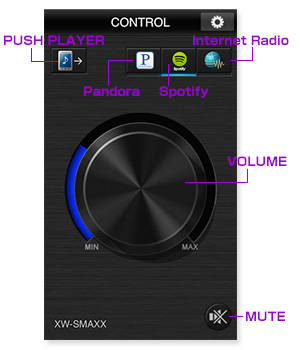
Control screen
"Internet Radio/Pandora"
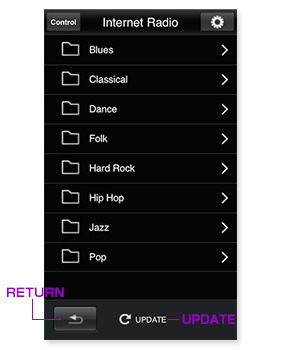
1. "RETURN"
Returns to the previous screen.
2. "UPDATE"
Tap to update the list.
List screen
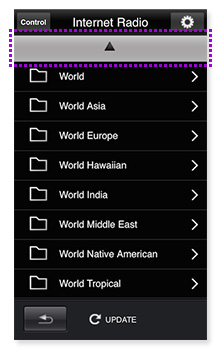
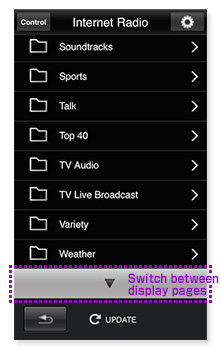
Tap the Δ / ∇ buttons to move between pages.
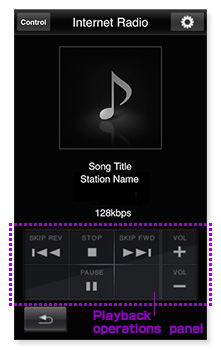
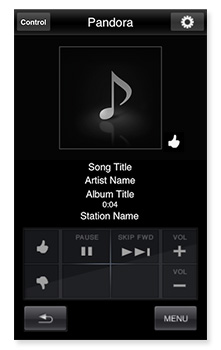
3. Playback operations panel
Allows basic playback control.
Playback operation screen
* When "Internet Radio" is selected
Playback operation screen
* When "Pandora" is selected
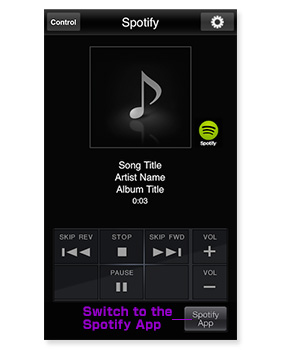
4. "Switch to the Spotify App"
Tapping the button will switch to the Spotify App.
Playback operation screen
* When "Spotify" is selected
[ Blu-ray Disc Surround System ]
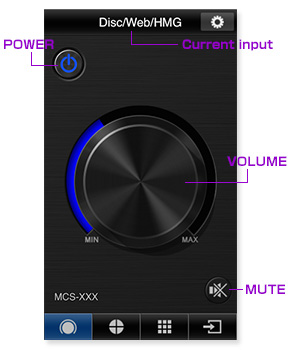
"CONTROL"
1. "POWER"
You can switch the power of the Blu-ray Disc Surround System on/off by tapping the button. *7
2. "VOLUME"
You can adjust the volume of the Blu-ray Disc Surround System by dragging the "VOLUME" dial.
3. "MUTE"
You can mute the sound by tapping the button.
4. "Current input"
Displays the unit's currently selected function.
* Displays "Dics/Web/HMG" on top, while playing discs, Web contents or during playback from Home Media Gallery.
"CURSOR"
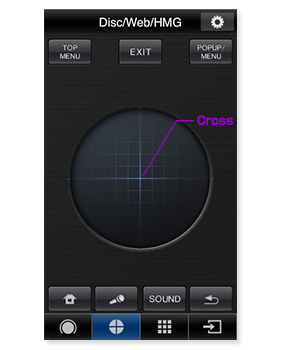
1. "Cross"
You can move the cursor by flicking up/down/left/right.
Tap action means "ENTER".
"PLAYBACK OPERATIONS"
1. "Control Panel"
You can operate playback functions.
* Some buttons / functions may not apply depending on the source being played.
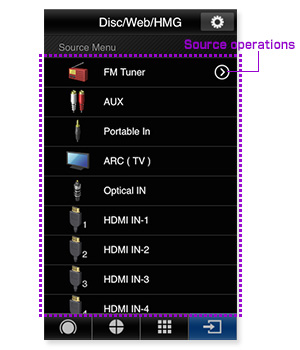
"SOURCE MENU"
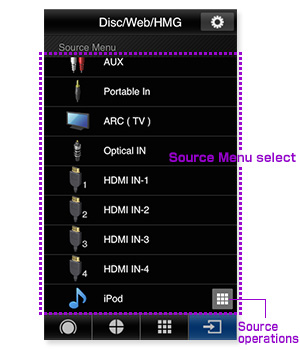
1. " Source selection Menu"
When the various source icons are tapped, the source changes.
The number of sources available depends on the model.
2. " Source operations"
tap beside FM Tuner and you will jump to "FM Tuner" screen.
tap  beside iPod and you will jump to "PLAYBACK OPERATIONS".
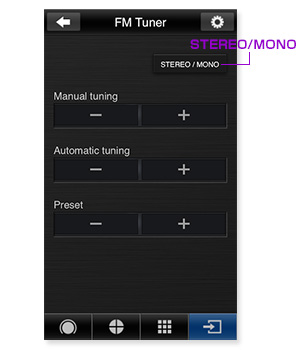
"SOURCE MENU"
1. "STEREO/MONO"
When the button is pressed, the sound switches between STEREO and MONO. In a poor reception area, select MONO for clear, inter-ference-free broadcast.
2. "Manual tuning"
You can tune in by manual adjustment.
* verify the frequency at the front panel display window.
3. "Automatic tuning"
Press -/+ to automatically search the band.
4. "Preset"
You can select the stored stations by pressing -/+.
[ Slim Micro System ]
"CONTROL"
1. "POWER"
You can switch on/off power of the Slim Micro System by tapping the button. *8
2. "INPUT SELECT"
"INPUT SELECT" page appears by tapping button. In this page, you can select one of the input functions.
3. "VOLUME"
You can adjust the Slim Micro System volume by dragging the "VOLUME" dial.
4. "MUTE"
You can mute the sound by tapping the button.
5. "P.BASS"
When the button is tapped, "P.BASS" switches ON/OFF.
6. "EQUALIZER"
When the button is tapped, "EQUALIZER mode" change to a different mode.
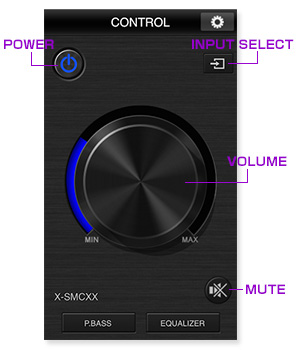
Control screen
"INPUT SELECT"
1. Current input
Displays the unit's currently selected function.
2. Input function select
When the various input function icons are tapped, the input function changes.
The number of input functions differs depending on the model.
3. Input operations
When there is a mark next to the name of the input function, tapping the mark gives access to the List screen, and Input operation screen.
* If you want to listen to Spotify on your Pioneer device, you have to open the "Spotify App".
* Spotify can only be accessed in countries where it is officially available.
4. "PUSH PLAYER"
Tapping the mark accesses the PUSH PLAYER screen for playing music directly from your iPhone/iPod touch.
(See explanation of the "PUSH PLAYER" page , click here)
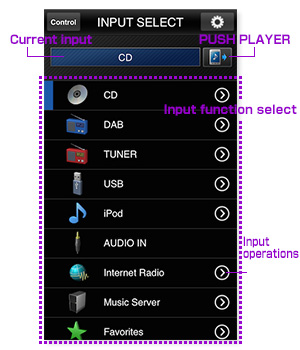
Input select screen
INPUT OPERATIONS("Internet Radio", "Music Server", "Favorites", "iPod", "USB", "CD")
You can select a list of radio stations and contents to play from the following Input functions : "Internet Radio", "Music Server", "Favorites", "USB( for iPod/iPhone/iPad)", "iPod"
You can operate only basic operations such as "play or stop" in functions of "CD", "USB(USB Memorry)".
* In the USB function, your operation are differentiated in some cases.
・iPod/iPhone/iPad via USB : You can operate "LIST" & "Playback operations panel".
・USB Memorry via USB : You can operate only "Playback operations panel".
* To see explanation of the "INTERNET RADIO" page , click here
1. "List"
You can play songs or move the layer by tapping
You can add a song or station to "Favorites" by pressing and holding a song or station from the "Internet Radio" and "Media Server" functions.
You can remove a song or station from "Favorites" by pressing and holding the song or station from within the "Favorites" function.
In addition you can add a song or station to "Favorites" from "Playback operation panel".
2. "UPDATE"
Tapping the button will update the display list.
3. "Playback operations panel"
Allows basic playback control.
Available playback options depend on the Input function selected.
4. "Switch to the Spotify App"
Tapping the button will switch to the Spotify App.
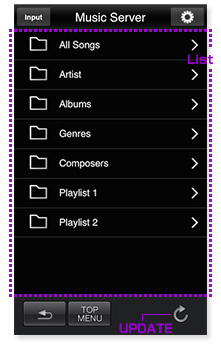
List screen
* When "Music Server" is selected
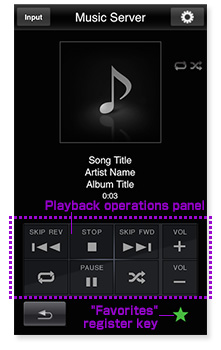
Playback operation screen
* When "Music Server" is selected
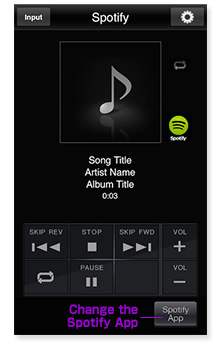
Playback operation screen
* When "Spotify" is selected
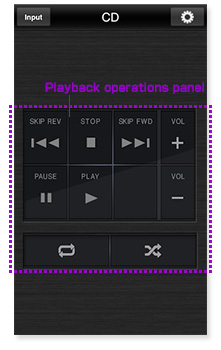
Playback operation screen
Tap the Δ / ∇ buttons to move between pages.


INPUT OPERATIONS("TUNER", "DAB")
1. "Manual Tuning"
You can tune in by manual adjustment.
* verify the frequency at the front panel display window.
2. "Automatic Tuning"
Scanning will start automatically and the tuner will stop at the first receivable broadcast station.
3. "Preset"
You can select the stored stations by pressing -/+.
4. "Station"
You can select the station for DAB.
5. "MEMORY"
You can store the playing station in memory.
* Can not store the station, if preset memory is full.
* Can not erase preset channel from Control App.
If you want to erase preset a channel, you must use the remote controller.
6. "STEREO/MONO"
When the button is pressed, the sound switches between STEREO and MONO. In a poor reception area, select MONO for clear, inter-ference-free broadcast.
7. "Station Surfing"
Receivable broadcasting station is played for a short time, and changed to the next broadcasting station automatically.
* Play time is changed depending on environment.
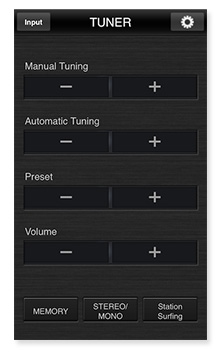
TUNER
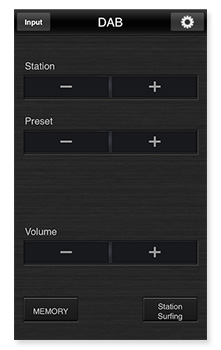
DAB
[ Network AV Speaker Bar System ]
"CONTROL"
1. "POWER"
You can power on/off power of the Network AV Speaker Bar System by tapping the button. *9
2. "Volume"
You can adjust the volume of the Network AV Speaker Bar System by dragging the "VOLUME" dial.
3. "Subwoofer Volume"
You can adjust the volume balance between the subwoofer and speakers by dragging the "Subwoofer Volume" dial.
4. "MUTE"
You can mute the sound by tapping the button.
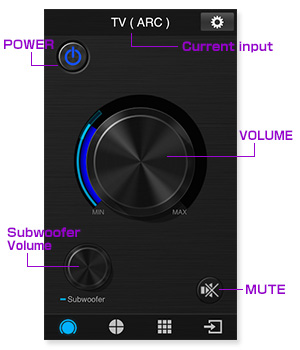
5. "Current input"
Displays the unit's currently selected function.
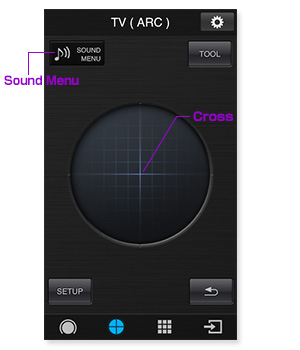
"CURSOR"
1. "Cross"
You can move the cursor by flicking up/down/left/right.
Tap action means "ENTER".
2. "Sound Menu"
Switch to the sound menu screen, you can change
various sound settings.
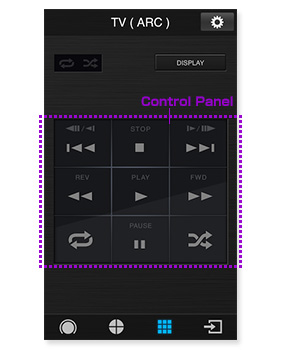
"PLAYBACK OPERATIONS"
1. "Control Panel"
You can operate playback functions.
* Some buttons / functions may not apply depending on the source being played.
"SOURCE MENU"
1. "Source selection Menu"
When the various source icons are tapped, the source changes.
The number of sources available depends on the model.
2. "Source operations"
When you tap mark next to BT Audio,
It will switch to the screen that displays the connection status of the Bluetooth device and network AV Speaker Bar System.
tap  beside iPod and you will jump to "CURSOR".
When you tap  mark next to YouTube, you can switch to the YouTube app.
* This system support the "YouTube Send to TV". If You can select video content from YouTube app ,You can watch on the TV via "AV network system bar".
(You will need to specify a destination on YouTube app.)

[ Network Speaker Base ]
"CONTROL"
1. "POWER"
You can switch on/off power of the Network Speaker Base by tapping the button. *10
2. "INPUT SELECT"
"INPUT SELECT" page appears by tapping button. In this page, you can select the input source by tapping input source table.
3. "VOLUME"
You can adjust the CD receiver volume by dragging the "VOLUME" dial.
4. "MUTE"
You can mute the sound by tapping the button.
5. "P.BASS"
When the button is tapped, "P.BASS" switches ON/OFF.
6. "SURROUND"
When the button is tapped, "SURROUND mode" change to a different mode.
7. "SUBWOOFER VOLUME"
You can adjust the subwoofer volume by tapping the button.
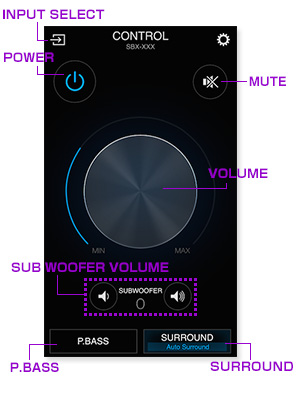
"INPUT SELECT"
1. "Current input"
Displays the unit's currently selected source.
2. "Input function select"
When the various input function icons are tapped, the input function changes.
The number of input functions differs depending on the model.
3. "PUSH PLAYER"
Tapping the mark  accesses the PUSH PLAYER screen for playing music directly from your iPhone/iPod touch.
(See explanation of the "PUSH PLAYER" page , click here)
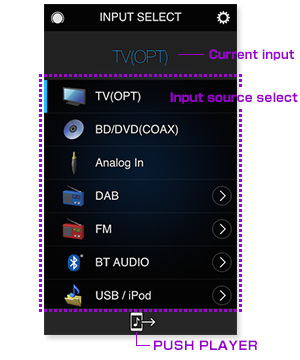
INPUT OPERATIONS("BT AUDIO", "USB/iPod", "Spotify", "Music Server", "Favorites")
You can select a list of contents to play from the following Input functions : "USB/iPod", "Music Server", "Favorites"
1. "List"
You can play songs or move the layer by tapping.
You can add a song or station to "Favorites" by pressing and holding a song or station from the "Media Server" function.
You can remove a song or station from "Favorites" by pressing and holding the song or station from within the "Favorites" function.
In addition you can add a song or station to "Favorites" from "Playback operation panel".
When in the list screen, attempting to scroll past the available items will cause the △ / ▽ keys to appear, allowing you to alternate between multiple pages.
Tap the △ / ▽ buttons to move between pages.
2. "RETURN"
Tap this button while on the list screen to go back up one layer in the list.
On the playback screen you will be returned to the list screen.
3. "TOP MENU"
Tapping the button causes switching to the playback screen.
4. "Search & Sort"
Displayed when operating the server handling search or sort when the input source is "Music Server" and by tapping, the menu on the right appears.
4-1. "Searching the entire server"
After selecting the sever, performs searching the entire server.
4-2. "Searching the current folder and below"
Search is performed on the current folder and below.
4-3. "Sort"
Switches between the track order and alphabetical order.

List screen
* Example when Music Server is selected
About the search function
The entered search keyword is requested to the server supporting the search function and the search result notified by the server is displayed in the ControlApp list.
Even though the music is the same, if the same music is registered in each folder configured in the server, the search result may be displayed in duplicate.
If you wish to reduce the duplicated display of the search result, use the Folder search to narrow down the target range of search.
Also, the search function depends on the specifications of each server, it does not mean that same search result can be obtained from all servers.
5. "UPDATE"
Tapping the button will update the display list.
6. "Switching to the playback screen"
Tapping the button causes switching to the playback screen.
7. "Playback operations panel"
Allows basic playback control.
* The available buttons differ depending on the input selected and the content being played back.
8. "Switch to the Spotify App"
Tapping the button will launch/switch to the Spotify App.
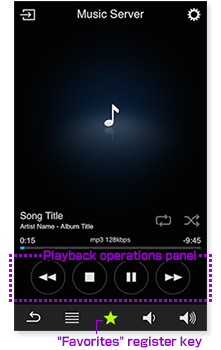
playback screen
* Example when Music Server is selected
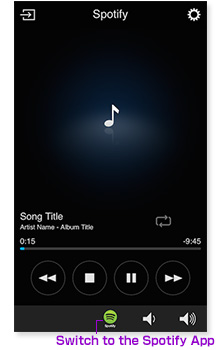
playback screen
* Example when Spotify is selected
INPUT OPERATIONS("FM")
1. "TUNE"
Tap and hold -/+, scanning will start automatically and the tuner will stop at the first receivable broadcast station.
Tap the -/+ repeatedly to tune in to the desired station.
2. "PRESET"
You can select the stored stations by pressing -/+.
3. "MEMORY"
You can store the playing station in memory.
* Can not store the station, if preset memory is full.
* Can not erase preset channel from Control App.
If you want to erase preset a channel, you must use the remote controller.
4. "STEREO/MONO"
When the button is pressed, the sound switches between STEREO and MONO. In a poor reception area, select MONO for clear, inter-ference-free broadcast.
5. "Station Surfing"
Receivable broadcasting station is played for a short time , and changed to the next broadcasting station automatically.
* Play time is changed depending on environment.
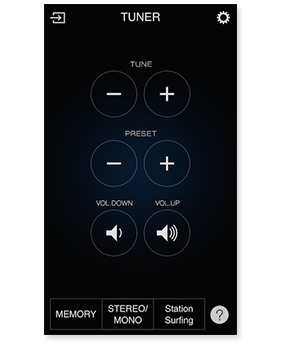
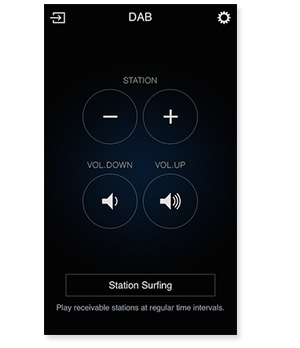
INPUT OPERATIONS("DAB")
1. "Station"
You can select the station for DAB.
2. "Station Surfing"
Receivable broadcasting station is played for a short time , and changed to the next broadcasting station automatically.
* Play time is changed depending on environment.
[ INTERNET RADIO ]
The list of Internet Radio stations provided with the unit is based on the radio station database service vTuner.
This database service is edited and compiled for use with the unit.
The unit can be used to register and play programmed material from stations not found on lists distributed by vTuner.
To do this, confirm the access code necessary to register the unit, and use that code to access the dedicated Pioneer internet radio site;
through it, you can register your favorite stations. The URL for the dedicated Pioneer Internet Radio site is http://www.radio-pioneer.com.
1. Display the top level screen of the Internet Radio list.
2. Tap on "Help".
3. Tap on "Get access code".
The screen will display the access code necessary to register stations on the dedicated Pioneer Internet Radio site; record that access code on piece of paper.
The Help screen allows you to confirm the following items:
・Get access code : Displays access code necessary to register on the dedicated Pioneer Internet Radio site.
・Show Your WebID/PW : After registering on the dedicated Pioneer Internet Radio site, your registration ID and password will be displayed.
・Reset Your WebID/PW : Resets all registration information on the dedicated Pioneer Internet Radio site. When this is reset, any broadcast stations you have registered there will also be erased, so if you wish to continue to listen to any sites you previously registerd, re-register them after performing the reset.
4. Accessing the dedicated Pioneer Internet Radio site from your computer.
http://www.radio-pioneer.com
Use the above URL to access the site.
5. To change the site's language, choose the applicable country flag on the first page of this website.
6. Read the disclaimer and if in agreement, click on "ACCEPT".
7. Use the access code noted in step 3 to perform user registration according to the instructions on the screen.
8. Follow the instrucions on the screen to register your favorite stations.
Here, you can register both stations not on the vTuner list, and stations on the list as well. In this case, the stations will be recorded on the unit as favorite stations, allowing you to play them easily.
[ Playing music directly from your iPhone/iPod touch, wirelessly ]
AirPlay is used to output audio to this unit.
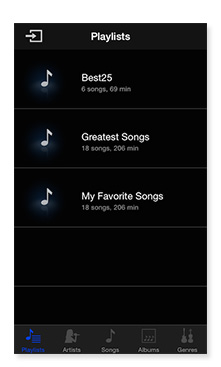
1. "Music Laibrary"
Music file on iPhone/iPot touch will be displayed.
Tap a track name on the list to start playback.
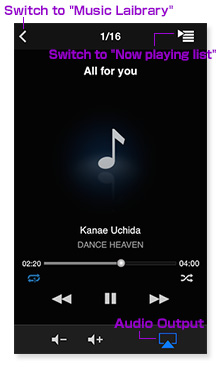
2. "Playback operation screen"
Allows playback control.
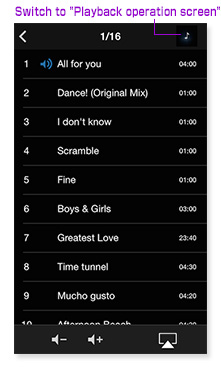
3. "Now playing list"
Displays the list currently being played.
4. "Audio output"
Tap this button to display a list of currently connected AirPlay devices Select ayour AV reciever from the Audio output list and music will play to it.
* If no connected AirPlay devices are found, the  will not appear.
* The Audio output screen will display all devices compatible with AirPlay in your network environment.
Music Laibrary
Playback operation screen
Now playing list
[ Common ]
 button at the top right of any page to change to the settings menu:
Displays a list of devices that have previously been controlled by ControlApp.
If other devices have been connected by ControlApp,"change device button" is displayed when you tap a setting button.
It will continue to be displayed during that tap the Settings button.
Keep pressing the "settings button", then slide finger to the "change device button " which appears on the left of the settings icon, a list of devices which Control App has ever connected with will be displayed.
When you select the device you want to operate from the list, and it connects, the screen will change.
* "Change devices button" will continue to be displayed when the Settings button is tapped.
* The "change device button " displays as long as you keep pressing the "settings button".
When you stop pressing the "settings button", "settings screen" will be displayed.
* If you have more than one of the same product, please switch to the connected device from the control target device list by selecting the device from the settings screen.
* Devices that have not been operated by ControlApp do not appear in the list.
If you want to operate by ControlAPP for the first time,you select the devices from the selection screen, please connect from the control target device list.
1. Select device
From this page, you can retrieve and connect to the target device.
This page will be utilized when you want to add products to be controlled, or when the connection procedure failed during the start-up of ControlApp.
1-1. List of compatible products
This is a list of equipment that can be controlled by ControlApp.
You can select the device you want to control.
Go to the second screen to select a device
that will be connected for the first time.
You can connect by tapping the target model.
(A blue bar is displayed to the left of the model name when
the connection is completed)
1-2. Advanced settings
Tap to display advanced setting information.
1-3. UPDATE button
When the UPDATE button is tapped, a search is performed for controllable devices on your network; if found,
the devices are displayed by name. Tap on the device name to select it.
1-4. IP address
A device search can be performed not only by the UPDATE button;
a device can also be connected by inputting its IP address.
When IP Address is tapped, the screen changes to display the
IP Address input menu. Input the device's IP address and tap the SEARCH button.
* For information on how to confirm a device's IP address consult the device's Operating Instructions.
2. DEMO Mode
Alternately turns the DEMO Mode ON/OFF. When the DEMO mode is selected, the ControlApp can be operated without connecting the device.
3. Region select
Select your region of residence, or the nearest one to it.
This item is normally set automatically and requires no change.
4. Version information
Displays the version number of the Pioneer ControlApp.
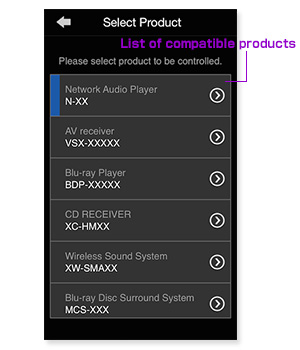
Select device screen1
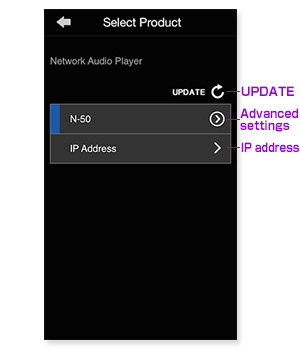
Select device screen2
(*1) On a Pioneer Network Audio Player power ON control only works when "Quick start" mode or "Network standby" mode is enabled.
(*2) On a Pioneer AV receiver power ON control only works when "Network Standby" mode is enabled.
(*3) On a Pioneer Blu-ray Disc player power ON control only works when "Quick Start" mode is enabled.
(*4) There are some Blu-ray Disc player functions you cannot operate from this page.
(*5) Switching off the power using ControlApp puts the CD receiver into network standby mode only. To turn the product off, press the product's power button.
(*6) On a CD receiver power ON control only works when "Quick start" mode is enabled.
(*7) On a Pioneer Blu-ray Disc Surround System power ON control only works when "Quick Start" mode is enabled.
(*8) On a Slim Micro System power ON control only works when "Quick Start Mode" is enabled.
(*9) On a Network AV Speaker Bar System power ON control only works when "Application Standby Mode" is enabled.
(*10) On a Network Speaker Base power ON control only works when "Network Standby Mode" is enabled.
Frequently Asked Questions (FAQ)
Q1.What devices are supported by the ControlApp?
A1.Please see the list of supported devices on the ControlApp introduction page.Q2.What operating environment is required?
A2.It can be used with iPhone/iPod Touch models using iOS6.1 or later.Q3.Can't successfully download the Pioneer ControlApp.
A3.Do you have a LOGIN ID for the App Store (iTunes Store)?It may be impossible to successfully download an application from locations with poor Wi-Fi or 3G connections.
In this case, wait a while and try downloading again later.
Q4.I get a network error message "Check your controllable device."
A4.If no problems exist with your network environment or connection, tap the RETRY button.If the problem persists, tap the Device Select button and choose a IP address.
Input the IP address of this unit (controllable device) and try connecting.
* To confirm the IP address of this unit (controllable device), consult the device’s Operating Instructions.
Q5.I get the network error “Cannot connect to Internet. Check your network settings.”
A5.Does your iPhone or iPod touch have a successful Wi-Fi connection to your network? If a connection is successfully established,the Wi-Fi icon
 will appear in the screen’s upper left corner.
 Q6.I get a download error "Download failed."
A6.In locations with poor connection environment for Wi-Fi or 3G, it may be impossible to download the necessary information.In this event, wait for a period of time, then tap the Retry button to download once again.
* Downloading the necessary information when starting the ConnectApp is possible with a 3G connection, but the use of a Wi-Fi connection is recommended.
Q7.I don't know the device's model number.
A7.The model number can be found on the packaging, or on the front panel of the unit.Q8.I successfully downloaded and loaded the application, but I continue to get error messages and can’t connect.
A8.Check the Troubleshooting section below.Q9.Why can't I control POWER ON from the application?
A9.For a network audio player, please first enable "Quick Start Mode" or "Network Standby" mode.For an AV receiver, please first enable "Network Standby" mode.
For a Blu-ray Disc player, please first enable "Quick Start Mode"
For a CD Receiver(X-HM71, X-HM81, XC-HM81), you can control when in network standby mode.
For a CD Receiver(X-HM72, X-HM72D, X-HM82, X-HM82D, XC-HM82, XC-HM82D), you can control when in "Quick Start Mode".
For a Wireless Speaker, please first enable "Quick Start Mode".
For a Blu-ray Disc Surround System, please first enable "Quick Start Mode"
For a Slim Micro System, please first enable "Quick Start Mode".
For a Network AV Speaker Bar System, please first enable "Application Standby Mode".
For a Network Speaker Base, please first enable "Network Standby Mode".
Note: you can not power ON an AV receiver from stand-by by ControlApp when the HDMI control function is ON.
Q10.When I call up the Manual IP setting menu, the previously set value is there; what should I do?
A10.When using manual IP to connect a device with a different IP address, overwrite the previous IP address.Q11.The target device selection screen does not appear, and you can not choose a product other than the network audio player.
A11.Please restart the app while your iPod touch or iPhone is connected to the Internet.Q12.Why can't I download the "Spotify application for smartphone".
A12.Spotify can only be accessed in countries where it is officially available.Q13.When you search music, same music is displayed multiple times.
A13.The entered search keyword is requested to the server supporting the search function and the search result notified by the server is displayed in the ControlApp list.Even though the music is the same, if the same music is registered in each folder configured in the server, the search result is displayed in duplicate.
If you wish to reduce the duplicated display of the search result, use the Folder search to narrow down the target range of search.
Also, the search function depends on the specifications of each server, it does not mean that same search result can be obtained from all servers.
Troubleshooting
- Does your iPhone/iPod touch have a Wi-Fi connection to your network? When a connection is established,
the Wi-Fi icon will appear in the upper left corner of the screen.

- Is the controllable device connected to your network? Connect the device to the same network as Wi-Fi.
Connect the unit (controllable device) to the access point.
- Is the unit (controllable device) turned ON?
Control app can access these products under the following conditions:
- Network Audio Player : "Quick Start Mode" or "Network Standby" mode is ON
- AV Receiver : "Network Standby" is ON
- Blu-ray Disc player : "Quick Start Mode" is ON
- CD Receiver (X-HM71, X-HM81, XC-HM81) : You can control when in network standby.
- CD Receiver (X-HM72, X-HM72D, X-HM82, X-HM82D, XC-HM82, XC-HM82D) : "Quick Start Mode" is ON
- Wireless Speaker : "Quick Start Mode" is ON
- Blu-ray Disc Surround System : "Quick Start Mode" is ON
- Slim Micro System : "Quick Start Mode" is ON
- Network AV Speaker Bar System : "Application Standby Mode" is ON
- Network Speaker Base : "Network Standby Mode" is ON
Note: you can not power ON an AV receiver from stand-by by ControlApp when the HDMI control function is ON.
- Does a different ControlApp already have a connection to the unit (controllable device)? A single unit (controllable device) cannot be controlled simultaneously by more than one ControlApp.
- When starting the ControlApp, did you manually change the IP address of the unit (controllable device)?
If the above operation was performed, either close the ControlApp for a while, or use the ControlApp's setting menu to select and input the IP address that you changed earlier, and try the connection again.
- Is your unit (controllable device) a model supported by the ControlApp?
Please refer to the list of compatible models for ControlApp in the introduction page of app (click here).
For Introduction Features and Download (Pioneer Control App Application Support & Guide Top page), click here.
AirPlay, iPod touch, iTunes and App Store are trademarks of Apple Inc., registered in the U.S. and other countries.
iPhone is a trademark of Apple Inc.
iOS is a trademark on which Cisco holds the trademark right in the US and certain other countries.